
What does recreate till data do?
In order to send updates that have been made in the Back Office and training tills, you will need to recreate till data, so these updates can be pushed down to the tills.
How to recreate till data?
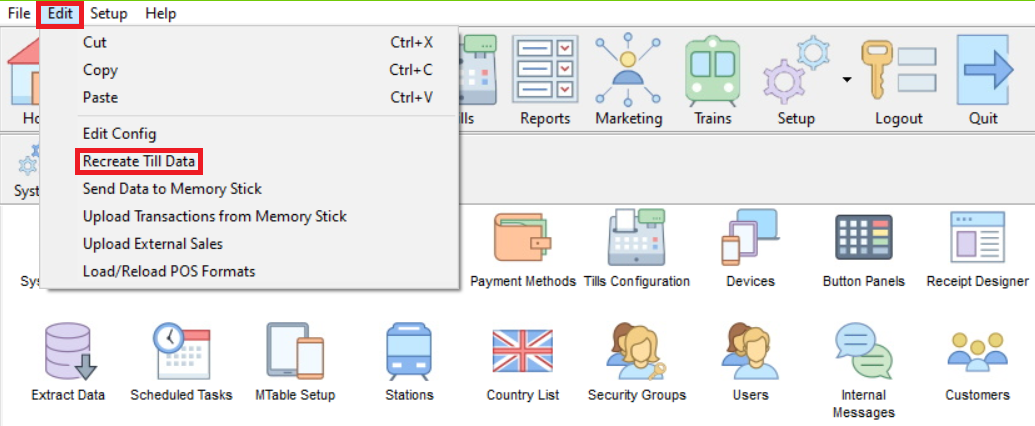
From the Home or Setup screen, click Edit, in the top-left screen. Then Recreate Till Data.
From this screen, you can then click Apply, to recreate till data for all till. If you want to only recreate till data for specific tills or departments, you will want to right-click on the tick next to All Departments, which will prevent all departments from updating.
You can then right-click on the cross again the department you would like to recreate till data for, or click the plus to drill down into the sub-department and then again to the list of tills within that sub-department. Here, you can right-click on the cross next to the till to recreate till data for that till.
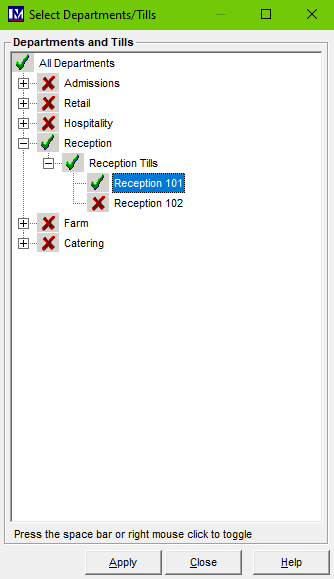
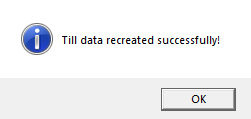
Once you are happy with your selection and have clicked Apply, allow around thirty seconds for the recreate till data process to complete. At which point, you will get the below message appear.
The final step in order the till to take this update is to log out of the till program, and then click Update System on the 4-button program. You may then log back into the Point Of Sale with the updates.
