
TABLE OF CONTENTS
- Remove Task View button from the Task Bar
- Stop Windows Storing 'my activity history on this device'
- Disable 'Allow Edge Swipe'
If you want to disable Task View in Windows 10, because this allows users to access anything other than what the device is used for, you can follow the below:
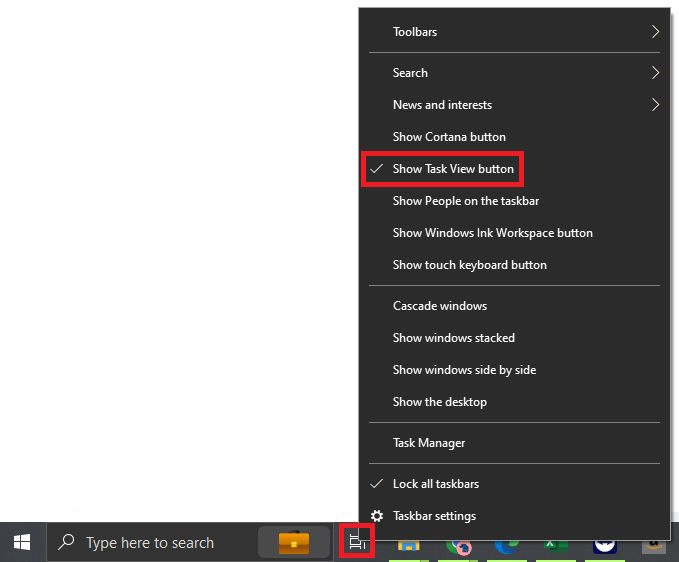
Remove Task View button from the Task Bar
- Right-click on the Task View icon.
- click on Show Task View button.
Stop Windows Storing 'my activity history on this device'
- Type in Settings into the Windows Start Bar, clicking on the Settings app.
- Click on the Privacy button.

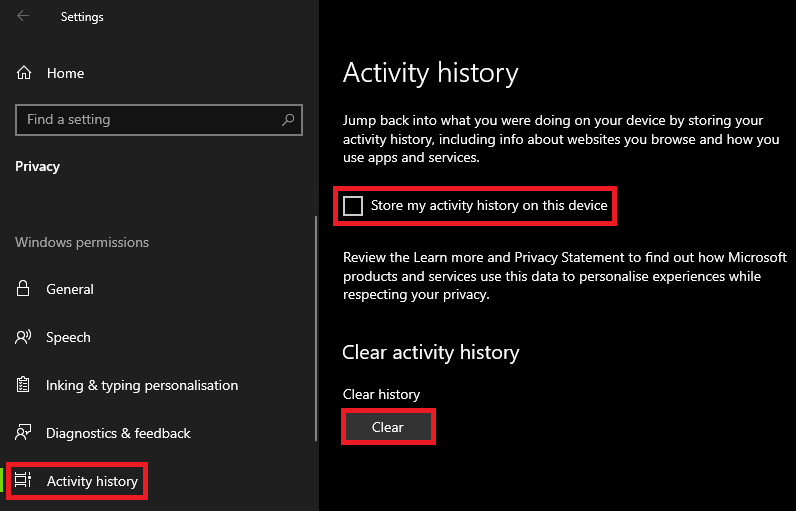
- Click on Activity history.
- Untick Store my activity history on this device, and Clear activity history.
Disable 'Allow Edge Swipe'
- Type in Group Policy into Windows Start Menu.
- Click on Edit Group Policy.

- Within Group Policy Editor, Click on Administrative Templates, Windows Components, Edge UI.
- Double-click on Allow edge swipe.
- In this window, click the Disabled radial button, and then OK.
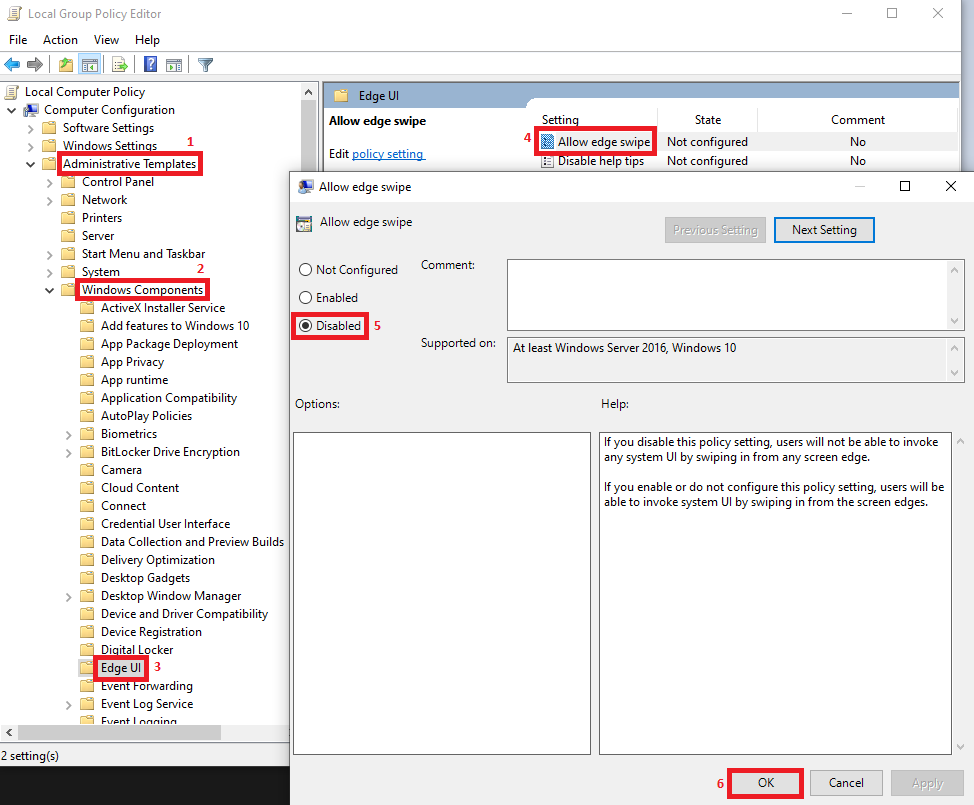
Any edge swipes will no longer invoke an system UI.