
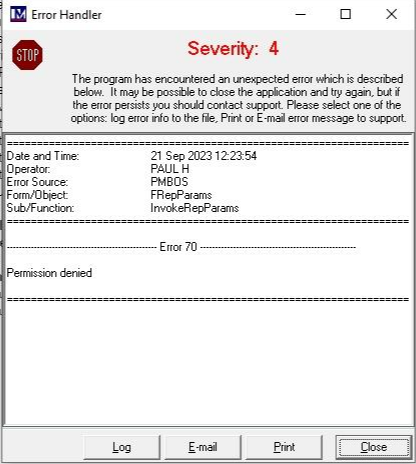
This Error generally occurs when the customer is trying to run a report and local permissions have not been set up on the device they are using, which is preventing the report on the device from being updated, before it can be run.
Example of error:
A Windows Administrator for the PC in question will have to perform the following steps in order to resolve this issue.
- Press the Windows key and the letter E key to open a File Explorer.
- Click into the top address bar (within red box labelled 1 below) and type in C:\ProgramData, and press the Enter key.
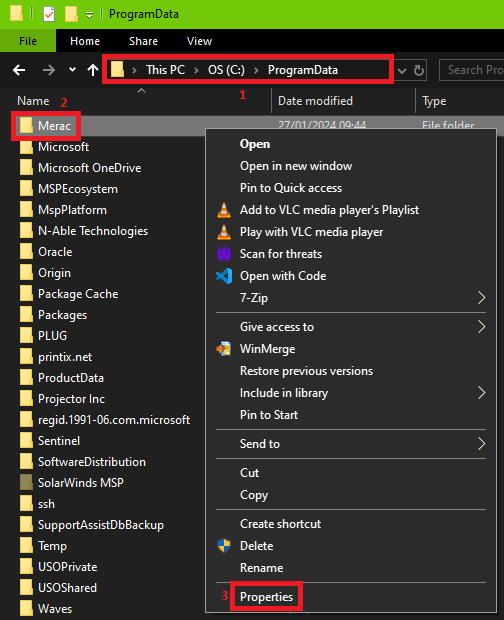 Right-click on the Merac folder (labelled 2 above), and select Properties (labelled 2 above).
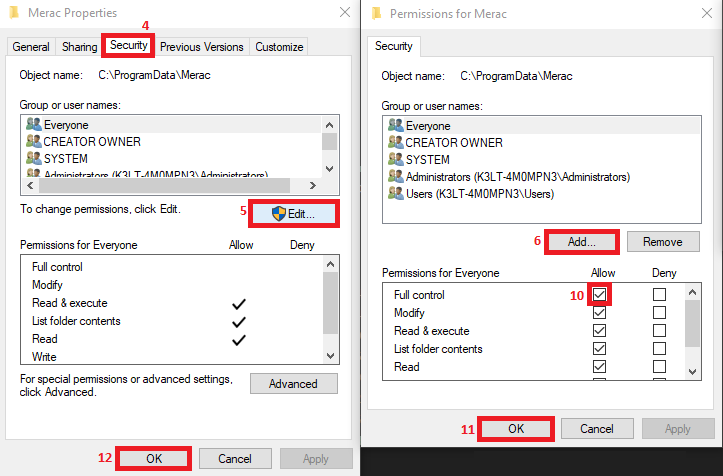
- Within the Properties window, click on the Security tab (labelled 4 below).
- Click Edit... (labelled 5 below), Add... (labelled 6 below),
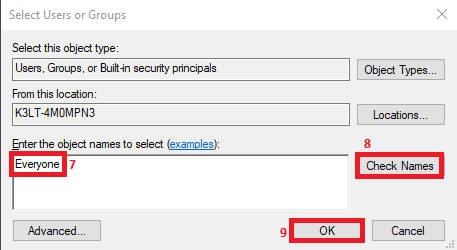
- Type Everyone (labelled 7 below). Or at least users that will need use reports within the MStore Back Office.
- Click Check Names (labelled 8 below), OK (labelled 9 below).
- With Everyone selected, tick the Allow Full Control tick box (labelled 10 below).
- Click OK (labelled 11 below), Ok (labelled 12 below).
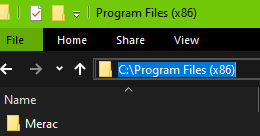
- You will now need to perform the same on the Merac folder within C:\Program Files (x86) (C:\Program Files if you have a 32-bit PC). Type in C:\Program Files (x86) (for 64-bit PC's) or C:\Program Files (for 32-bit PC's).
- Then follow steps 3-9 above.
Once you have performed this, you will then be able to open reports within the MStore Back Office, without receiving a Permission denied error