TABLE OF CONTENTS
Amending Merac Email Server Details
If you need to change your email server details that your Merac website uses to send booking, membership and shop order confirmation emails, you can follow the below process.
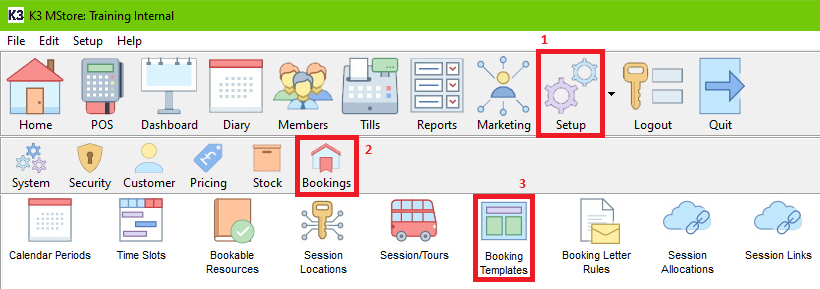
- Within the Back Office, Click Setup, Bookings, then Booking Templates.
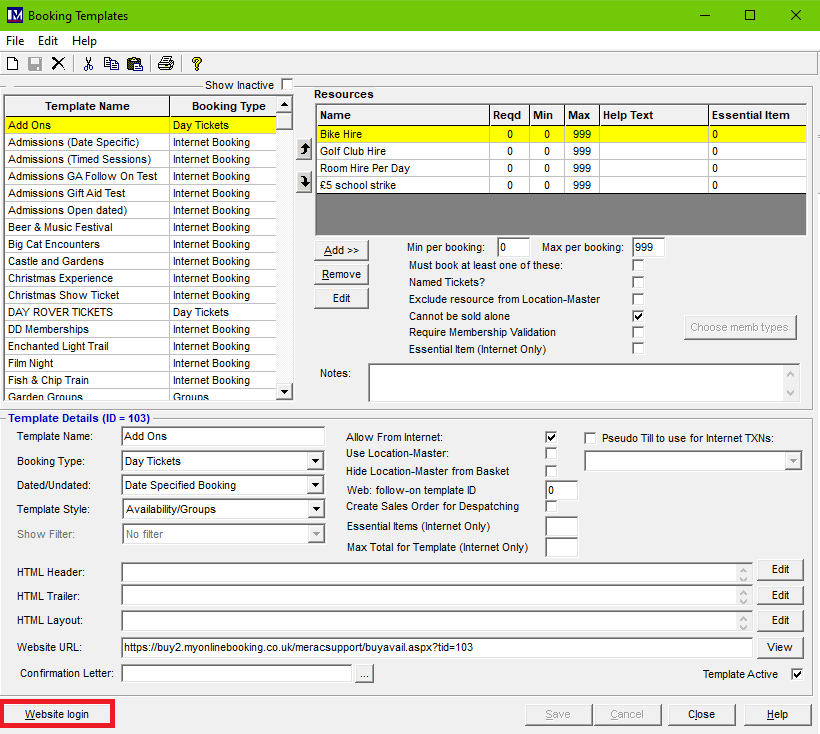
- Once Booking Templates is opened, click on Website login.
- This will take you to your website Back Office portal, where you will need to insert your website Back Office portal password for access.
The person at your site who regularly deals with making changes to the website should have this password. If you are unaware who will have this password, please do send a request in via the support portal here. This is not your PIN or password to access the till or Merac Back Office.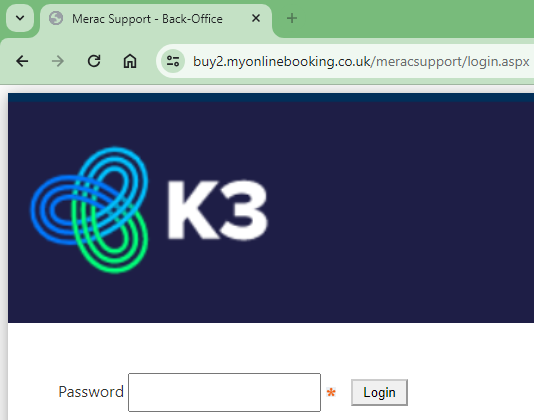
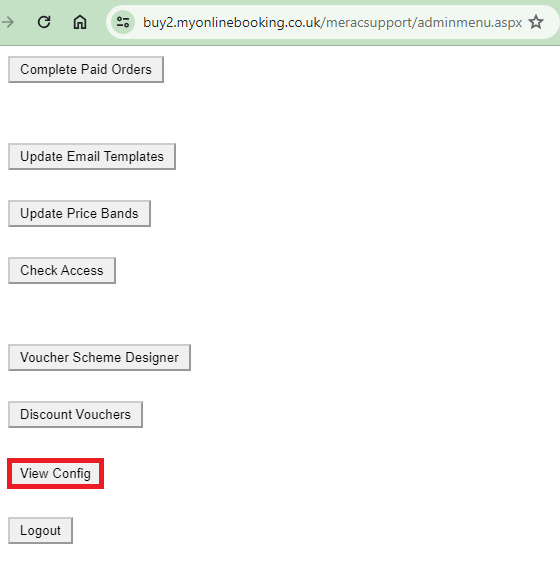
- Once you have gained access to the website Back Office portal, click on View Config. If this options is not showing for you, please report this to support via the support portal by clicking here. Please use the Change Request category, and Configuration Change for the sub-category.
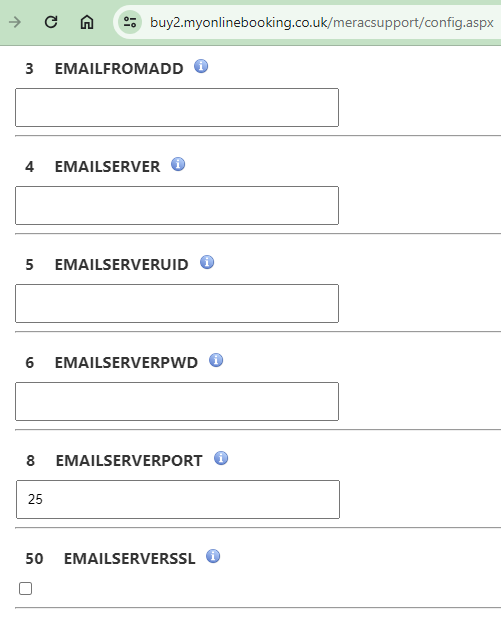
- Within the View Config page, you will then need to locate and update each of the below fields to what your email server is set to.
You may want to make a backup of the existing settings, just in case you would like to revert these settings back. If you do not see any of these configuration options, please report this to support via the support portal here.
- EMAILFROMADD - This is the email address used for where configuration emails are sent (via a relay) from.
- EMAILSERVER - This is the email exchange server used for where configuration emails are sent (via a relay) from the website.
- EMAILSERVERUID - This is the email exchange user account used for where configuration emails are sent (via a relay) from the website.
- EMAILSERVERPWD - This is the email exchange server password used for where configuration emails are sent (via a relay) from the website.
- EMAILSERVERPORT - This is the email exchange server port used for where configuration emails are sent (via a relay) from the website.
- EMAILSERVERSSL - This is the email exchange server SSL flag used for where configuration emails are sent securely encrypted (via a relay) from the website.
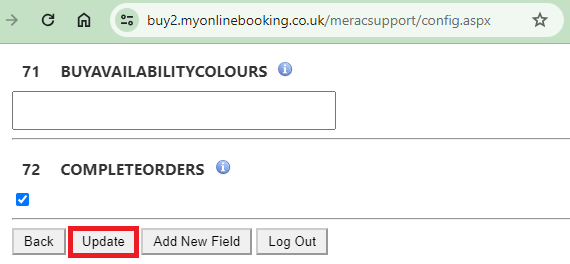
- Once you have inserted the correct details, scroll to the bottom of the page, and press Update.
Testing
You may then want to test sending an email to an email address, using these new details. To do this, please follow the below instructions:
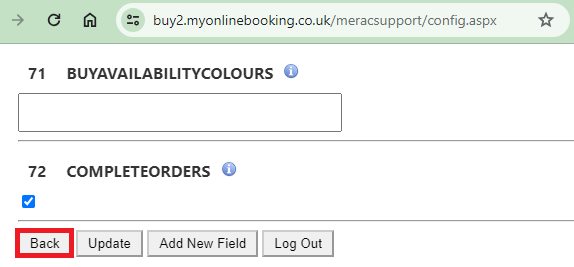
- Click Back to go back to the website Back Office Admin menu.
- Click on Update Email Templates.
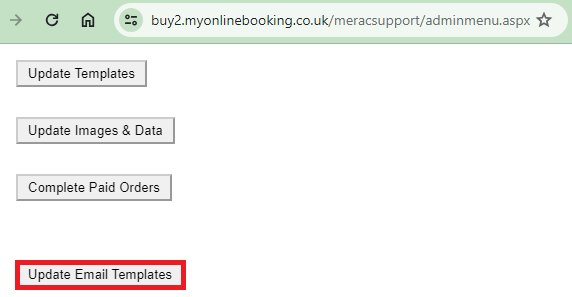
- Within Update Email Templates, click on Generic Email.

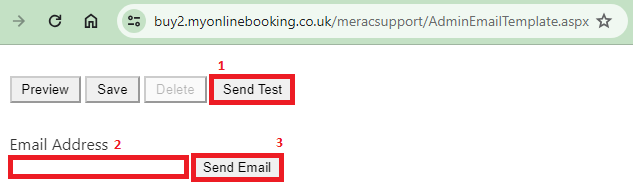
- Scroll to the bottom of this page. Then click Send Test. Type in a valid email address you would like to send this test email to, and click Send Email.
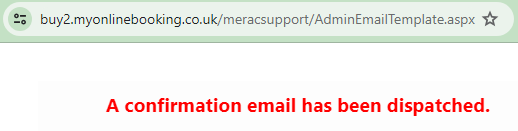
- a) If you receive "A confirmation email has been dispatched." at the top of the page, the recipient should then receive this test email within 30 minutes, and the testing is complete.
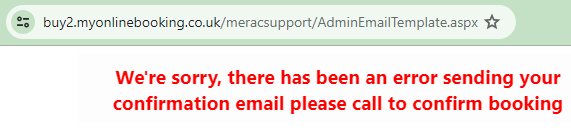
b) If you receive "We're sorry, there has been an error sending your confirmation email please call to confirm booking", there is a problem with your email server details that you will need to double-check, along with the email account.
If you require our assistance in troubleshooting the issue with your email server details, you can request this within our support portal by clicking here. Please use the Incident category, and Integration Issue for the sub-category. We will quote you for this work as this will be chargeable.