
If you would like to change how your receipts print, you can change this in the Merac Back Office by following the below instructions:
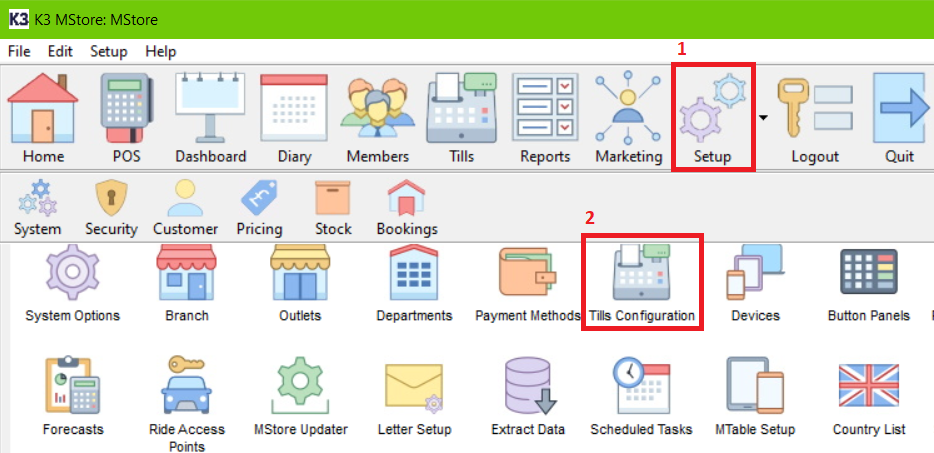
- Click on Setup, Till Configuration.
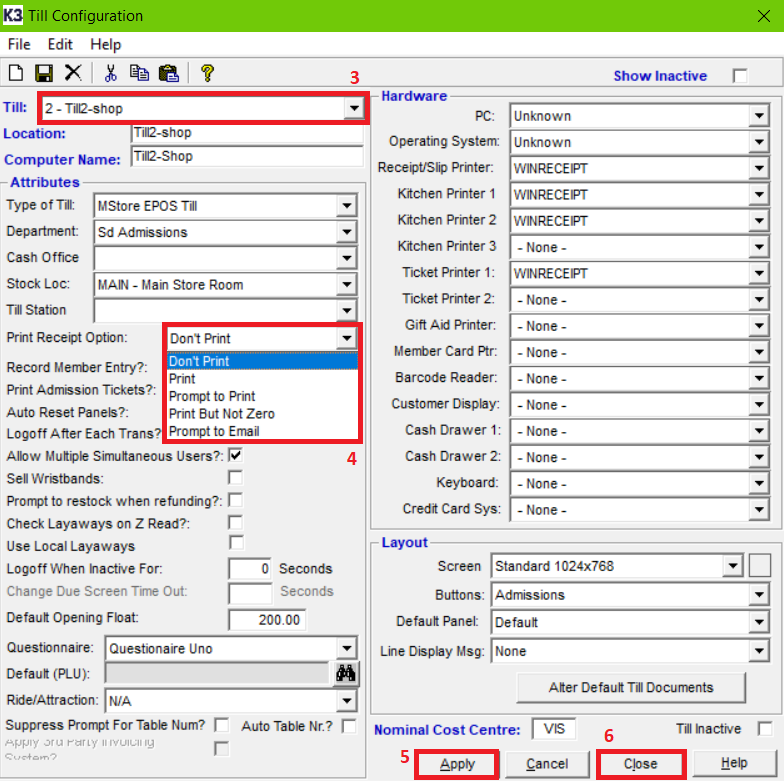
- Select your till in the drop-down (3).
- Choose one of the following options to change when receipts print (4):
- Don't Print - Do not print any receipts when completing a transaction.
- Print - Always print a receipts when completing a transaction.
- Prompt to Print - Prompt the till operator whether to print a receipt when completing a transaction.
- Print But Not Zero - Only print a receipt if the value of the transaction does not equal £0.
- Prompt to Email - Prompt the till operator to send this receipt to the requested email address (This will require chargeable setup before this functionality can be used. Please enquire with your account manager if you would like more information on this).
- Click Apply and Close.
-
Finally, recreate till data to push the update down to the till. To understand how to do this, please follow this Knowledge Base article: How To Recreate Till Data In Merac Back Office.