
Please note: If you have never used this functionality before, this may need to be setup for your site, which might be chargeable if you do not have the required modules.
How do I upload images to my shop website?
If you would like to upload images for a shop item, open the PLU maintenance screen for this record, make sure Sell item on the Internet? (1) is ticked.
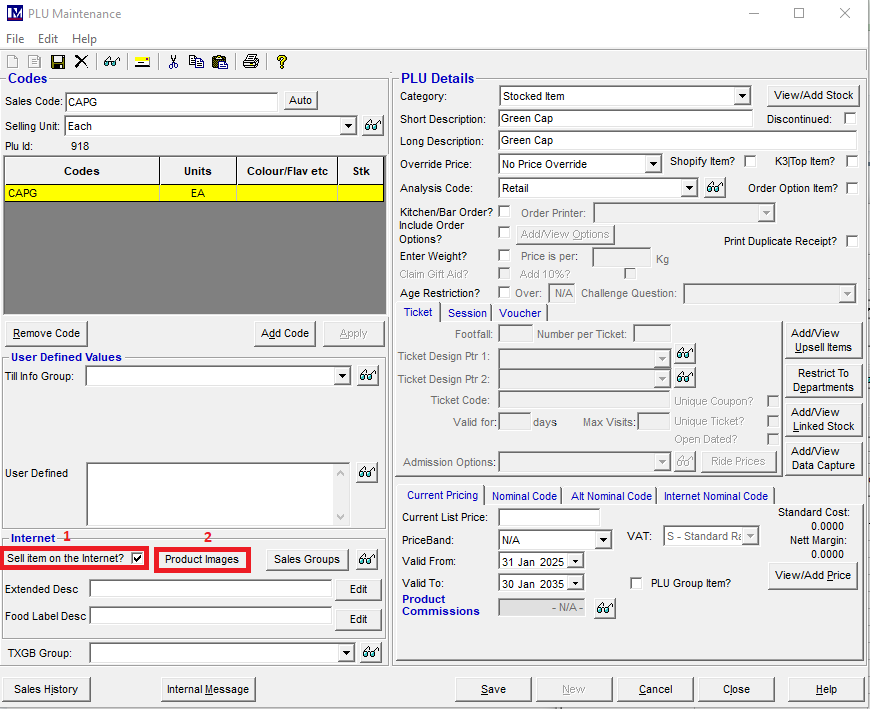
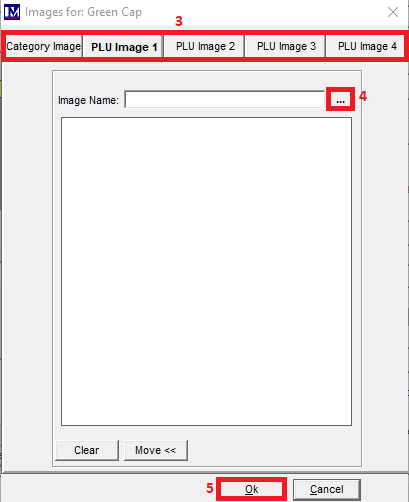
Then click on Product Images (2). Here you can add the Category image and up to 4 different images for the item. You can navigate to each image by clicking on each tab (3) that runs at the top of the Images window.
To add an image, click the three ... (4) and select the image that you have saved on your PC, then click Open and Ok (5) to upload this to the Back Office and website.
You will then need to log into your online website portal to Update Images & Data to upload these images to your website.
How long will it take for my images to be uploaded to the website?
This process can take matter of minutes, to a maximum of 20 minutes on rare occasions. This is because there is a process that runs on a regular basis. As soon as you press 'Upload Images & Data', this flags for your website to retrieve any new shop images when the next time this process is run.
Once the image has been uploaded, this will be available to show on the website immediately.
What image file formats can I use?
You can use common image file formats like .jpg and .png file.
What size images can I use?
The maximum image size in pixels is 300x300px.