
We've built MobilePOS to be as simple as possible to set up. This guide explains the ins and outs of setup and what you need to get started.
What is MobilePOS?
Merac MobilePOS is a simple Point of Sale solution that runs directly on a touchscreen payment terminal. At the time of writing this, the most common device is the PAX A920Pro with a built in scanner and receipt printer and a 5.5in touchscreen. You can use MobilePOS to sell items anywhere you have connection.
The payment terminals are sent directly from DNA Payments with our app pre-loaded. Once you have the activated device, and it is turned on ready to use, you can begin the MobilePOS setup. If you need help with your device, take a look at the DNA Help Centre.
First time setup
Depending on your setup, you might lauch the MobilePOS app from the DNA launcher shown below, or the device may boot directly into MobilePOS. In either instace, the setup is the same.
-
Open the MobilePOS app
- The app will boot and you should be greeted by the screen shown below
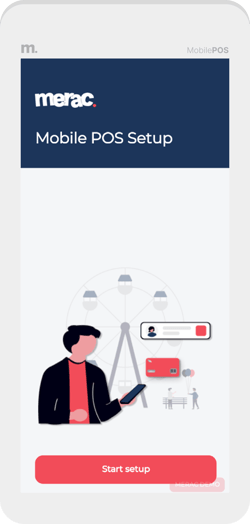
- Tap 'Start Setup'
- You will be taken to the Device Setup page. Here you will enter the system URL and password that Merac provide to you.
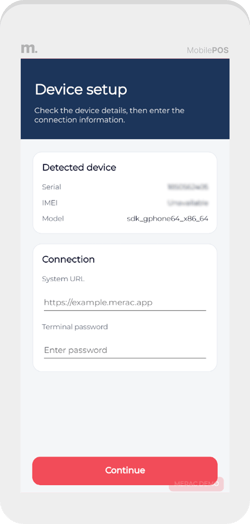
- Press 'Continue' and the device will configure, this usually only takes a few seconds
- You are now on the homepage of MobilePOS
From here you can launch the POS and start selling, check see the serial and type of device as well as the app version. You can also see the network status of the device.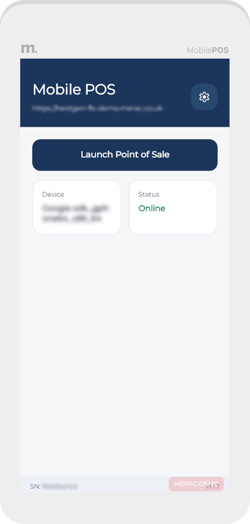
- Your device should show as online if you have connected it to a network, if not then you can do this in the settings menu
Settings & Features
Within the settings menu you can find some helpful things.
In Device Settings you can find important details about the device, as well as set a login PIN for when the app launches.
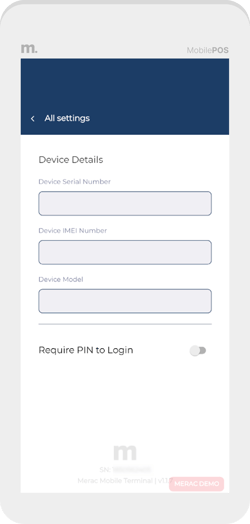
You can access device network settings to connect to WiFi or change networks
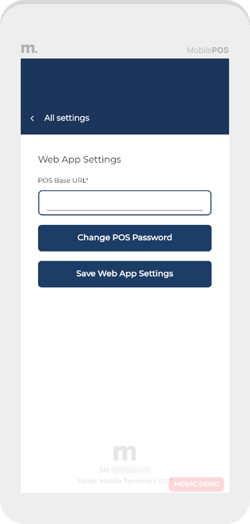
In WebApp Settings, you can change the Base URL and password used for launching POS
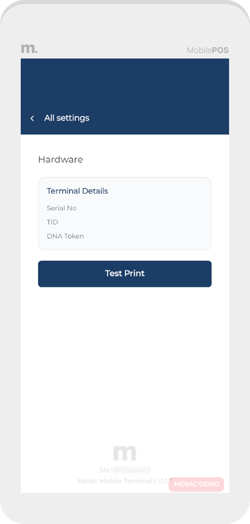
In Hardware Settings you can see info used for communicating with device hardware. You can also run a test print
And in Logs you can see the device log. This is also where you can send us a copy of the device log if asked by our team. Just tap 'Send Logs Options' enter and email and an optional message (usually the support ticket number), set the amount of time back you want to send logs from, and tap send.
You also have a quit button, in case you need to get out of our app.
Lastly, there is the reset option. If you need to reset everythin in the Merac Mobile POS app then you can do that here and start again.