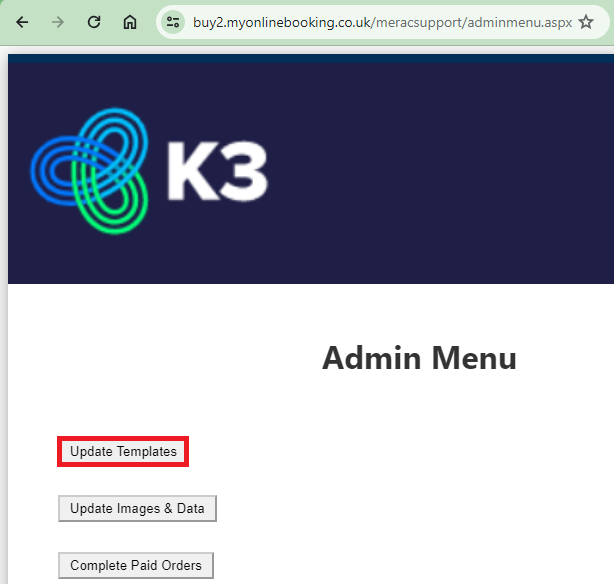
If you make changes in the Back Office, and you would like these changes to be sent up to your website, you will need to Update Website Templates.
To do this please follow the below steps. Please Note: You will require your website Back Office portal password.
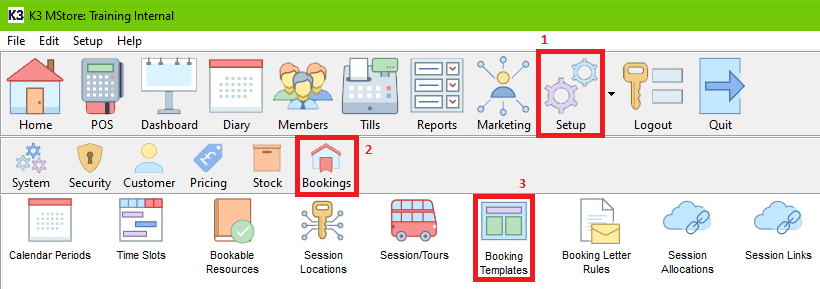
- Within the Back Office, Click Setup, Bookings, then Booking Templates.
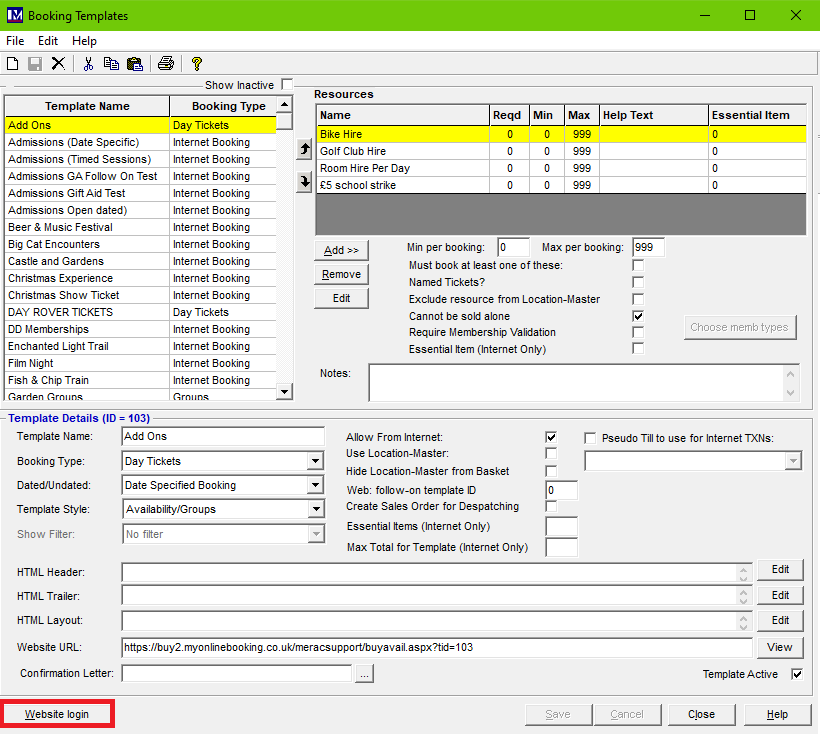
- Once Booking Templates is opened, click on Website login.
- This will take you to your website Back Office portal, where you will need to insert your website Back Office portal password for access.
The person at your site who regularly deals with making changes to the website should have this password. If you are unaware who will have this password, please do send a request in via the support portal here. This is not your PIN or password to access the till or Merac Back Office.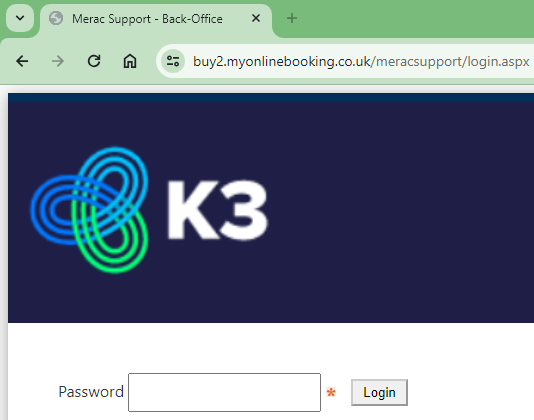
- Once you have gained access to your website Back Office portal, you then need to click Update Templates. This will then prompt once this process is complete, which typically takes a couple of seconds.
If an error is shown at this point, please report a screenshot of this issue within our support portal here.